Creating Code Crosswalks (Mappings)
You can create code crosswalks (mappings) for the source and target codesets in Codeset Manager. These codesets can have the same or different code values. Using the Auto-Map functionality, you can map codesets having same code values. Codesets having different code values can be mapped using the drag and drop method.
A category can hold multiple code maps. Code maps are stored in a hierarchical manner, Category > Mappings. You can also create sub-categories under a category to provide one more level of categorization to mappings.
To create a category, follow these steps:
- Go to Application Menu > Data Catalog > Codeset Manager > Codeset Mappings.
- In the Code Mappings Workspace pane, right-click the Code Mappings node.
- Click New Category.
- Enter Category Name and Category Description.
- Category Name: EDW
- Category Description: This category contains two code mappings, Gender Crosswalk and Marital Status Crosswalk.
- Click
 .
.
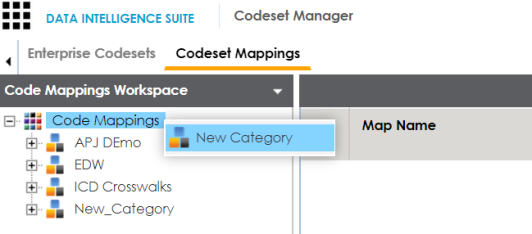
The New Category page appears.
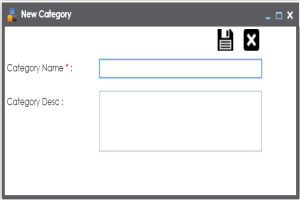
For example:
A new category is created and saved under the category tree.
To create sub-categories under a category, follow these steps:
- Under the Code Mappings Workspace pane, right-click the required category.
- Click New Sub Category.
- Enter Category Name and Category Description.
- Category Name - EDW-Finance
- Category Description - This sub-category contains two code mappings, Gender Crosswalk and Marital Status Crosswalk.
- Click .
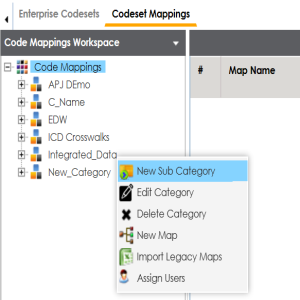
The New Category page appears.
For example:
A new sub-category is created and saved under the sub-category tree.
You can use Auto-Map functionality to map source and target codesets having same code values.
To create code mappings when source and target codesets have same code values, follow these steps:
- Right-click the required category.
- Click New Map.
- Enter Codeset Map Name and Codeset Map Description.
- Codeset Map Name - Gender Crosswalk
- Codeset Map Description - The codeset map is the code mappings between the two codesets, Misc Gender Codes and Gender.
- Select the Source Codeset/System and Target Codeset/System.
- Select the Auto Map check box and click .
- Click
 to validate the code mapping.
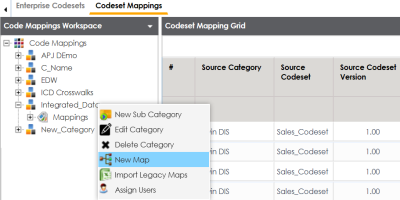
The New Codeset Map page appears.
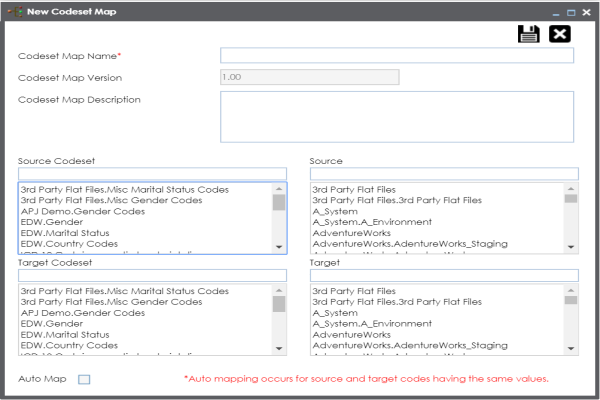
For example:
A new code mapping is created and source and target codesets are mapped in the Codeset Mapping Grid.
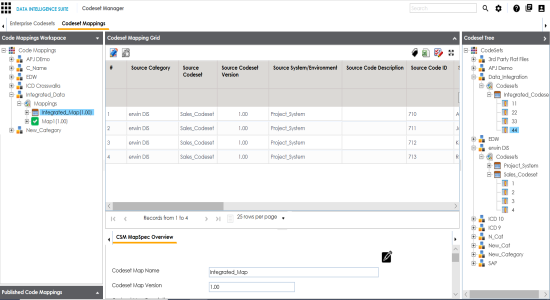
You need to use drag and drop method to map codesets having different code values.
To create code mappings when source codesets and target codesets have different code values, follow these steps:
- Right-click the category.
- Click New Map.
- Enter Codeset Map Name and Codeset Map Description.
- Codeset Map Name - Gender Crosswalk
- Codeset Map Description - The codeset map is the code mappings between the two codesets, Misc Gender Codes and Gender.
- Select the Source Codeset/System.
- Click .
- Click
 .
. - Scroll to right of the Codeset Mapping Grid to see the Target Code Value column.
- In Codeset Tree, expand the target category and the Codesets node.
- Drag and drop the target codeset into the Code Set Mapping Grid under the Target Code Value column.
- Click
 .
. - Click to validate the code mapping.
- Export
To download the code map details in .xlsx format, click
 .
.- Extend Mapping Grid
To extend the Codeset Mapping Grid, click
 .
.
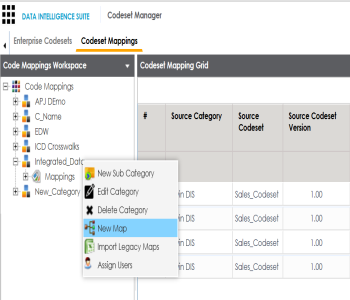
The New Codeset Map page appears.
For example:
The source codesets details are updated in the Codeset Mapping Grid.
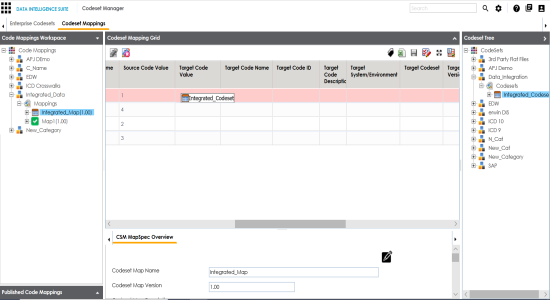
The code mappings are successfully saved.
The code map is validated. Ensure that all the required codes are mapped.
Use the following options:
Once the code map is created, you can: